A post goes from draft to review, then to approved, scheduled and published. The button at the top of the post shows the next step.
From draft to published
- Submit. On a draft with its destinations set, press Submit for review. If something is missing, such as a destination or the right media, a message says what to fix.
- Review. The post is In review. Someone who can approve opens it and presses Approve, with an optional Note, or Send back with a Reason. A post sent back returns to draft, and the reason shows on it as Note from the review.
- Schedule. Once Approved, press Schedule. The post becomes Scheduled. Each destination goes out at its own time, or right away if you set none.
- Publish. Geminel publishes at that time. The post shows Publishing, then Published. Open a destination and use its Open on link, followed by the network's name, to see it there.
To pull a scheduled post back, press Unschedule. It returns to Approved.
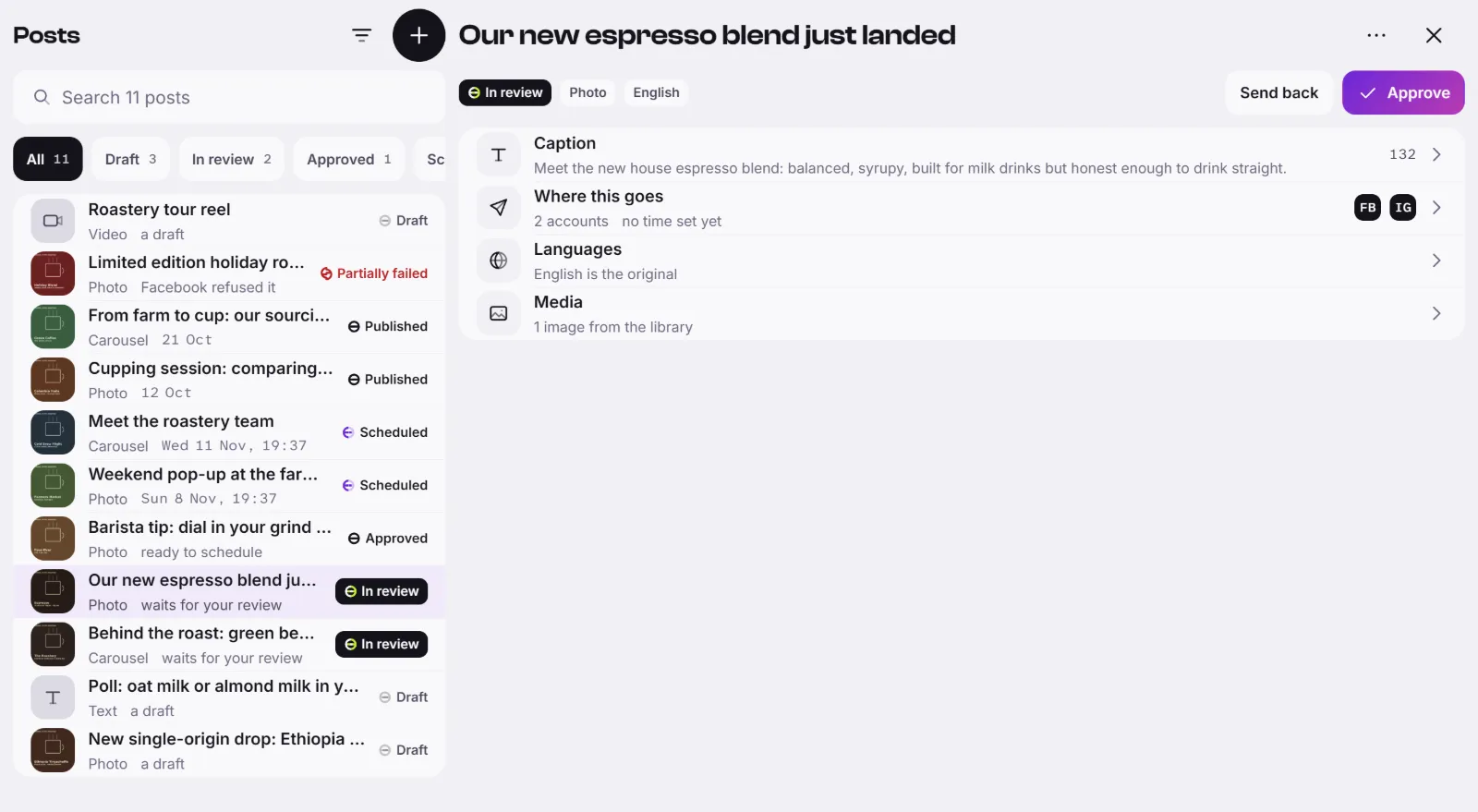
See what goes out when
Press Calendar in the dock. Switch between Month and List. A row opens its post. To change a day or time, use Where this goes on the post: see Choose where a post goes.
If a destination fails
A destination can show Failed, and the post Partially failed or Failed. If a network is briefly unavailable, Geminel tries again by itself before giving up.
- Open the post, then Where this goes.
- Press the failed destination. The message says what happened.
- Fix the cause. If the account shows Needs reconnect, press Reconnect on it.
- Press Retry.
Good to know
- If you see Waits for an approver, your role cannot approve. Ask someone who can.
- Depending on your autonomy settings, Geminel may approve a post for you right after you submit it.
- A post can be edited only while it is a draft.
- To remove a post, use Archive in More actions for this post. An archived post can no longer be edited or scheduled.