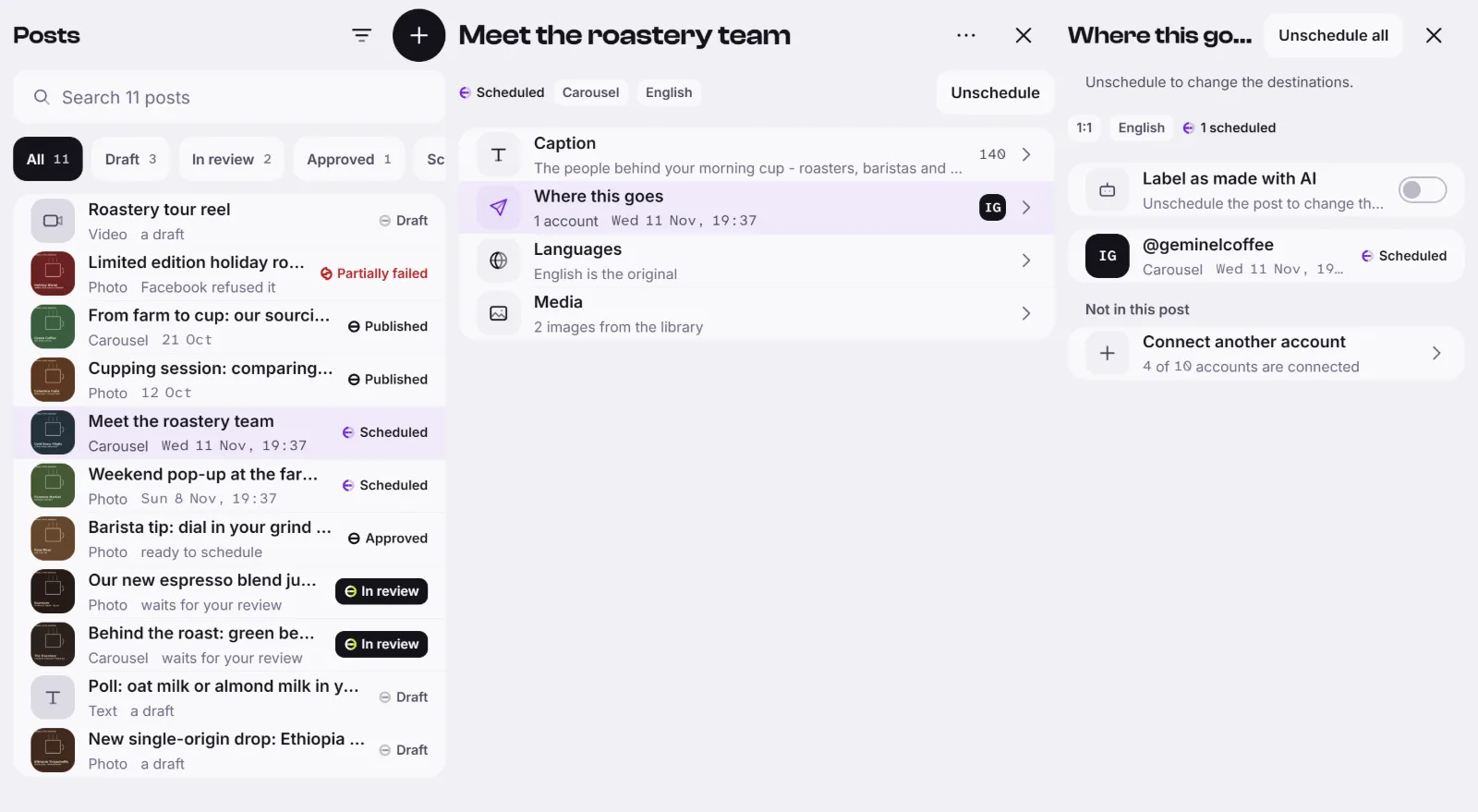
A post goes to one or more destinations. A destination is an account and a place on it, such as a Feed or a Reel. You choose them, give each a time and, if you want, a caption of its own.
Add a destination
- Open the post and press its Where this goes row.
- Press Add. Under Not in this post, you can also press Add beside an account.
- In Add destination, pick the account and where on it the post goes. The list offers only what that account can take for this kind of post.
- Set the Publish time. Leave it empty to publish as soon as the post is scheduled.
- Check the Caption and Hashtags. Under each you see how many the network allows.
- Press Add destination. You see Destinations saved.
Repeat for every account you want. Each destination is listed with its place and time, and a status: Pending, Scheduled, Publishing, Published or Failed.
Fit the captions to the networks
Press Adapt on the Adapt captions row. Geminel rewrites each destination's caption and hashtags to suit its network. If one fails, its row says why and the others are still saved. A small cost label may appear beside the button. Open a destination to read how its caption was adapted, or press Use the post's caption to go back to your own.
Change or remove a destination
- Press the destination's row.
- Change its time, caption or hashtags and press Save, or press Remove destination.
Good to know
- You can change destinations while the post is a Draft, In review or Approved. Once it is scheduled, press Unschedule all first.
- A destination that is already published cannot be changed or removed.
- Text posts go only to a Facebook feed.
- An account is set to one content language. A post can be added only to accounts of its own language, or to accounts with no language set. You set an account's Content language on its page in Accounts.
- If you have no account to add, press Connect another account: see Connect a Facebook Page or Connect an Instagram account.
- An account that shows Needs reconnect or Expiring soon cannot take posts until you press Reconnect on its page.
- A caption over the network's limit is trimmed to fit when it is published.