You connect a Facebook Page so Geminel can publish to it and read its comments and messages. You sign in on Facebook; Geminel never sees your password.
Connect a Page
- Open the launcher and press Accounts.
- Press Connect account.
- In the list, find Meta (Facebook & Instagram) and press Connect. If you see two buttons, Facebook pages I manage is for Pages managed from your own Facebook profile, and Through Meta Business is for Pages that belong to a Meta Business portfolio.
- Sign in with Facebook and approve what it asks for. You come back to Geminel.
- If Facebook found a single account, it is connected and you see Connected 1 account. If it found several, Geminel opens Add from Facebook & Instagram. Tick the Pages you want and press Add accounts.
- Open the new account and set its Content language.
Check the account
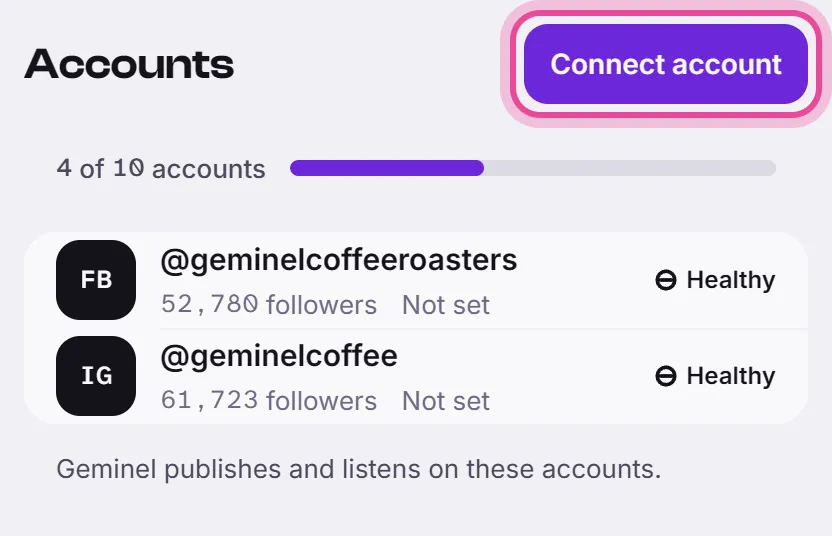
Each account shows Healthy when all is well. Open it to see what Geminel does there: Publishes posts, Answers comments and Answers messages, each marked Allowed or Not allowed. Sync now refreshes it.
If it shows Needs reconnect or Expiring soon, open it and press Reconnect. If permissions are missing, reconnecting asks for them again.
To stop using a Page, open it and press Disconnect this account. Posts scheduled to it will not go out.
Good to know
- Meta (Facebook & Instagram) lists the Pages you manage. An Instagram account linked to a Page shows up in the same list: see Connect an Instagram account.
- The list in Add from Facebook & Instagram closes after a few minutes. If it has expired, start again from Connect account.
- The workspace owner can limit who may connect and disconnect accounts. If you are not allowed, ask the owner.
- A line at the top of Accounts shows how many accounts your workspace may connect. When it is full, Connect is off: disconnect an account to free a place.
- If you don't see Meta (Facebook & Instagram) in the list, ask us with Help and feedback.
- If the owner of the Page is not in your workspace, see Ask us for a link the account's owner can use.
- To choose which accounts a post goes to, see Choose where a post goes.