Geminel can write several caption options for a post. You choose one, change what you like and save it. Nothing is saved until you press Save.
Write a caption
- Open the post and press its Caption row.
- Press Write it with Geminel.
- In Brief, say what the caption should say. Leave it empty to start from the post itself.
- Choose a Tone: Neutral, Friendly, Professional, Playful, Bold or Urgent.
- Choose the Language. It starts as the post's language.
- Under Fit to these networks, tick the networks the caption is for. The list shows the networks of the destinations you already added in Where this goes.
- Press Write captions. The options appear under Pick one.
- Press Use this on the one you like. It fills the editor.
- Edit the text and the Hashtags, then press Save.
If none fits, press Write again.
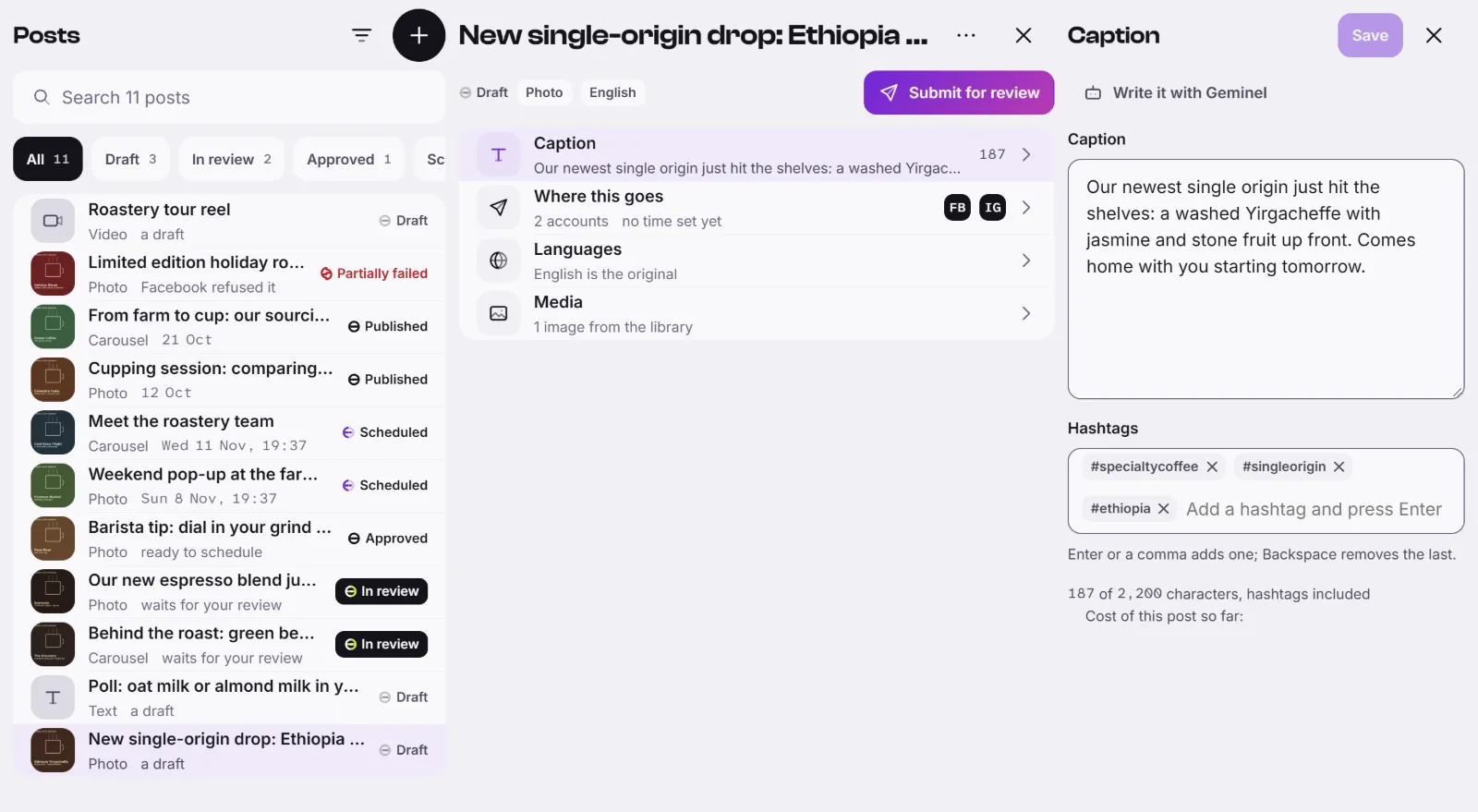
Edit the caption yourself
In the Caption pane, type in the Caption field. In Hashtags, press Enter or type a comma to add one, and Backspace to remove the last. The counter under the field shows how many characters you use, hashtags included. If you go over a network's limit, it is trimmed for that network.
Good to know
- When your workspace has a knowledge base, the options draw on it and From your knowledge lists the sources. A note says when Geminel wrote a caption on its own, not from your knowledge.
- Writing captions can use credits. A small cost label beside the button may show the estimate. For a larger amount, Use credits? asks you to press Continue. See Credits.
- You can write and edit a caption only while the post is a draft.
- To fit one caption to each network separately, use Adapt captions: see Choose where a post goes.