Credits pay for the work Geminel does for a workspace, such as writing text, making images and videos, and storing files. The Credits screen shows your balance and where it went. For prices, see Pricing.
See your credits
- Press Credits in the console dock.
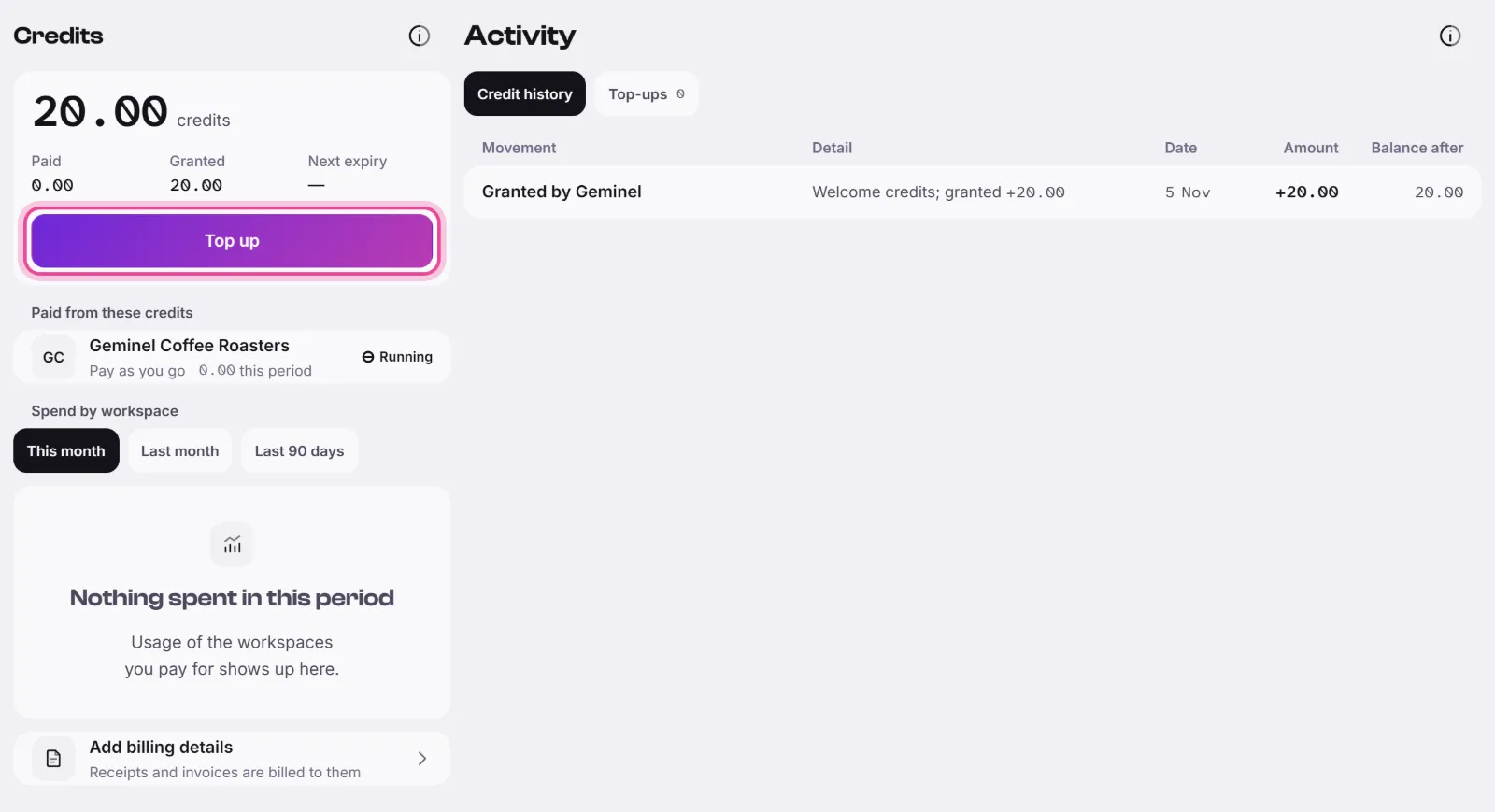
- At the top you see your balance, split into Paid (credits you bought), Granted (credits Geminel gave you) and Next expiry, the date the next grant ends, if it has one. Granted credits are used first.
- Paid from these credits lists the workspaces you pay for. Each shows whether production is running or paused.
- Spend by workspace shows what each of those workspaces used. Pick This month, Last month or Last 90 days.
- Paid by someone else lists workspaces you belong to whose usage comes off their payer's credits, not yours.
See every movement
The Activity pane has two lists. It sits beside the balance on a wide screen, and opens from the Credit history and Top-ups rows on a phone. Credit history lists every movement, newest first, with its amount and the balance after it. Top-ups lists your top-ups. Press Receipt on a paid one to open it.
When credits run low
A note says Credits are running low before they run out. When they do, the note says Your credits have run out: new production pauses in the workspaces you pay for. Replies to comments and messages keep running.
The Top up button sits under the balance. If it is unavailable, the line under it says why. If you pay for a workspace, a Billing details row on the same screen holds the details your receipts are billed to.
Know the cost before you start
Before a larger job, the app can show an estimate. A cost label appears beside the button, and for a bigger amount Use credits? asks you to press Continue. Afterwards a post shows what it has cost so far.
Good to know
- Top up works once you pay for a workspace. If you only belong to one, it is listed under Paid by someone else.
- If you don't see something described here, ask us with Help and feedback.