A post starts as a draft: you give it a title, add its media and write its caption. This guide covers photo, carousel and text posts.
Start the post
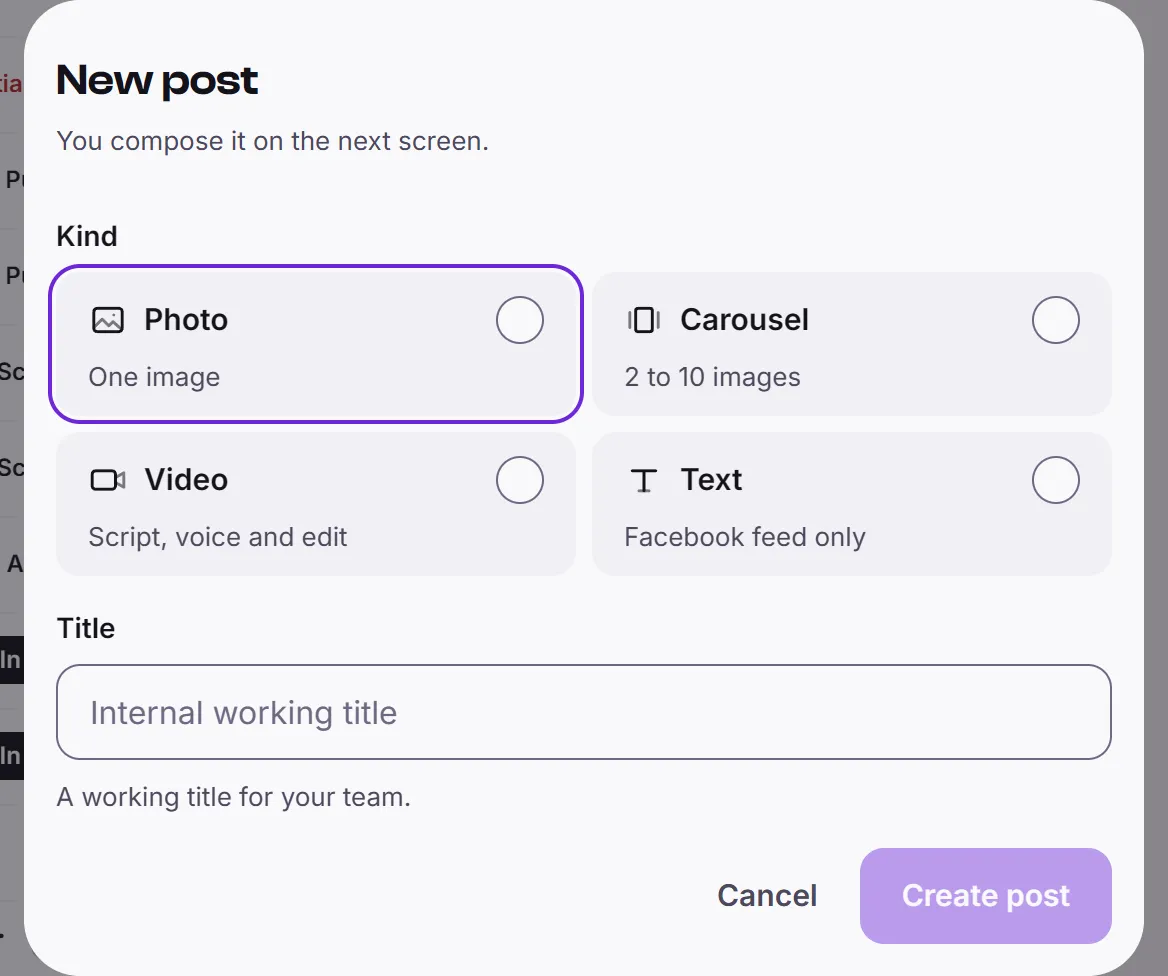
- Press Posts in the dock, then New post. You can also press New post on Home or in the Calendar.
- Under Kind, pick Photo, Carousel or Text. A photo has one image, a carousel several, and a text post only text.
- Type a Title. It is a working title for your team, not what you publish.
- Press Create post. The post opens as a Draft.
Add the images
Skip this for a text post.
- On the post, open Media.
- Drop your files on the area, or press Choose from library to pick files you already uploaded. The area lists the file types it accepts.
- For a carousel, change the order with Move earlier and Move later in the menu beside each image. Remove takes one out.
Brand image makes a picture from your brand kit and adds it to the post.
Write the caption
Open Caption on the post and type your text and Hashtags, then press Save. Geminel can write it for you: see Write captions with AI.
Next steps
- Choose the accounts the post goes to: Choose where a post goes.
- When it is ready, press Submit for review: see Approve, schedule and publish.
Good to know
- The media and caption can change only while the post is a draft.
- A photo needs exactly one image and a carousel needs several. If the media don't fit, Submit for review tells you what to fix.
- A text post has no media and can go only to a Facebook feed.
- To rename a post or archive it, use the More actions for this post menu.
- If you don't see New post, your access to this workspace may be read-only. Ask the workspace owner, or ask us.