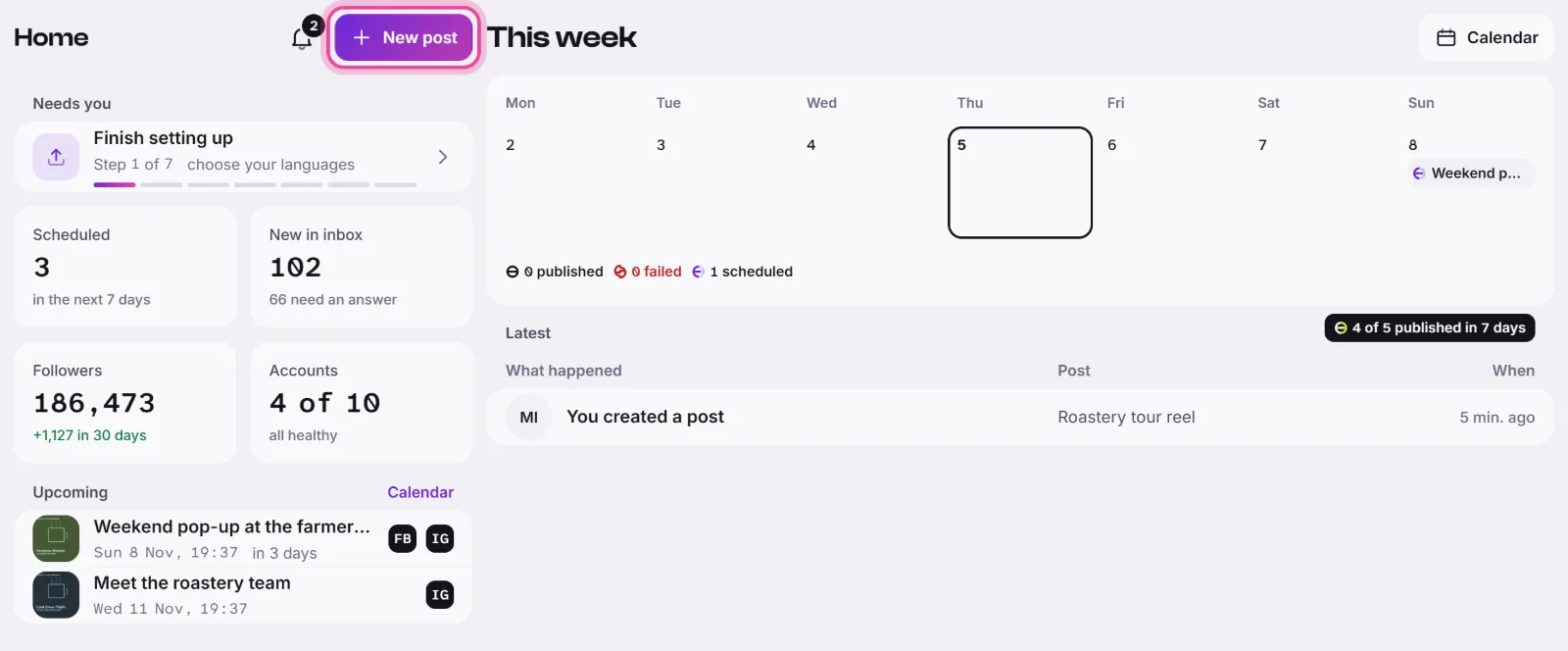
The app looks the same in a browser on a phone and on a computer: Home shows what needs you, a dock holds the four screens you use most, and a launcher opens everything else.
Home
Home puts what needs you first, under Needs you: an account to reconnect, setup to finish, replies waiting for your review, and videos waiting for a decision. Each row opens the right screen.
Below it you see counts that each lead to their screen: Scheduled, New in inbox, Followers and Accounts. Upcoming lists the next posts that will go out. New post starts a post: see Create a photo, carousel or text post.
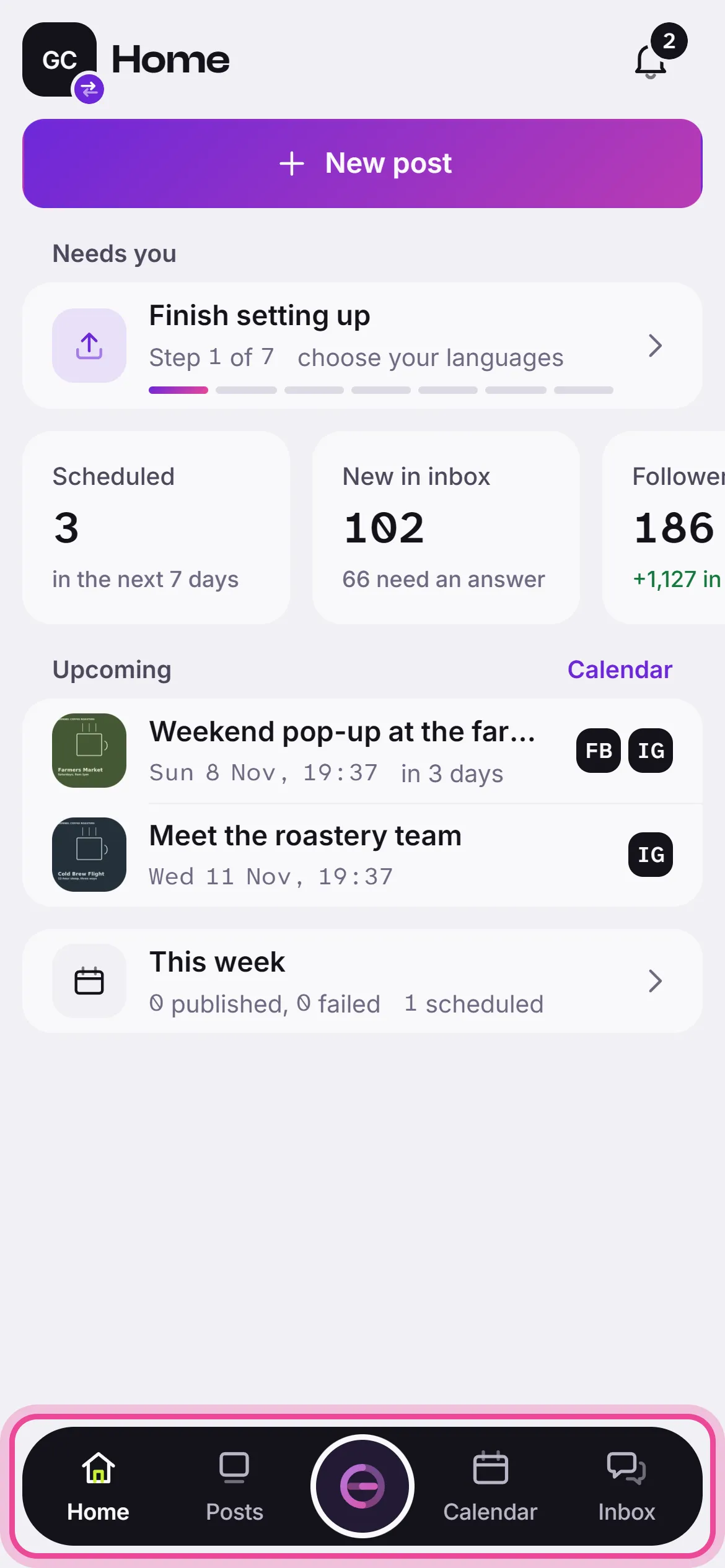
The dock
The dock sits at the bottom of the screen, and down the side on a wide screen. It has four items: Home, Posts, Calendar and Inbox. The round mark between Posts and Calendar opens the launcher.
Open anything from the launcher
- Press the round mark in the dock. You can also press /, or Ctrl+K (Cmd+K on a Mac).
- Press a tile. The tiles come in three groups: Create (Planner, Media, Knowledge), Engage (Engagement, Analytics, Notifications) and Workspace (Accounts, Settings).
- Or type in Search. It finds sections, your other workspaces and posts by title. Press Enter to open the first result.
- Press the mark again, now showing Close, to leave the launcher.
At the foot of the launcher
- Your name opens your Profile in the console.
- The chat icon, Help and feedback, lets you ask a question or send feedback.
- Replay the tour shows the short tour of the app again.
- Log out ends your session.
Good to know
- Posts are searched from the second letter you type.
- The launcher shows only what your role and your workspace allow. If a section a guide mentions is missing, ask us with Help and feedback.
- The first row of the launcher switches workspace: see How Geminel works.