If your audience reads more than one language, Geminel can write each post in all of them. You switch the languages on once, make a version of a post in each, and every version goes to the accounts set to that language.
Choose your languages
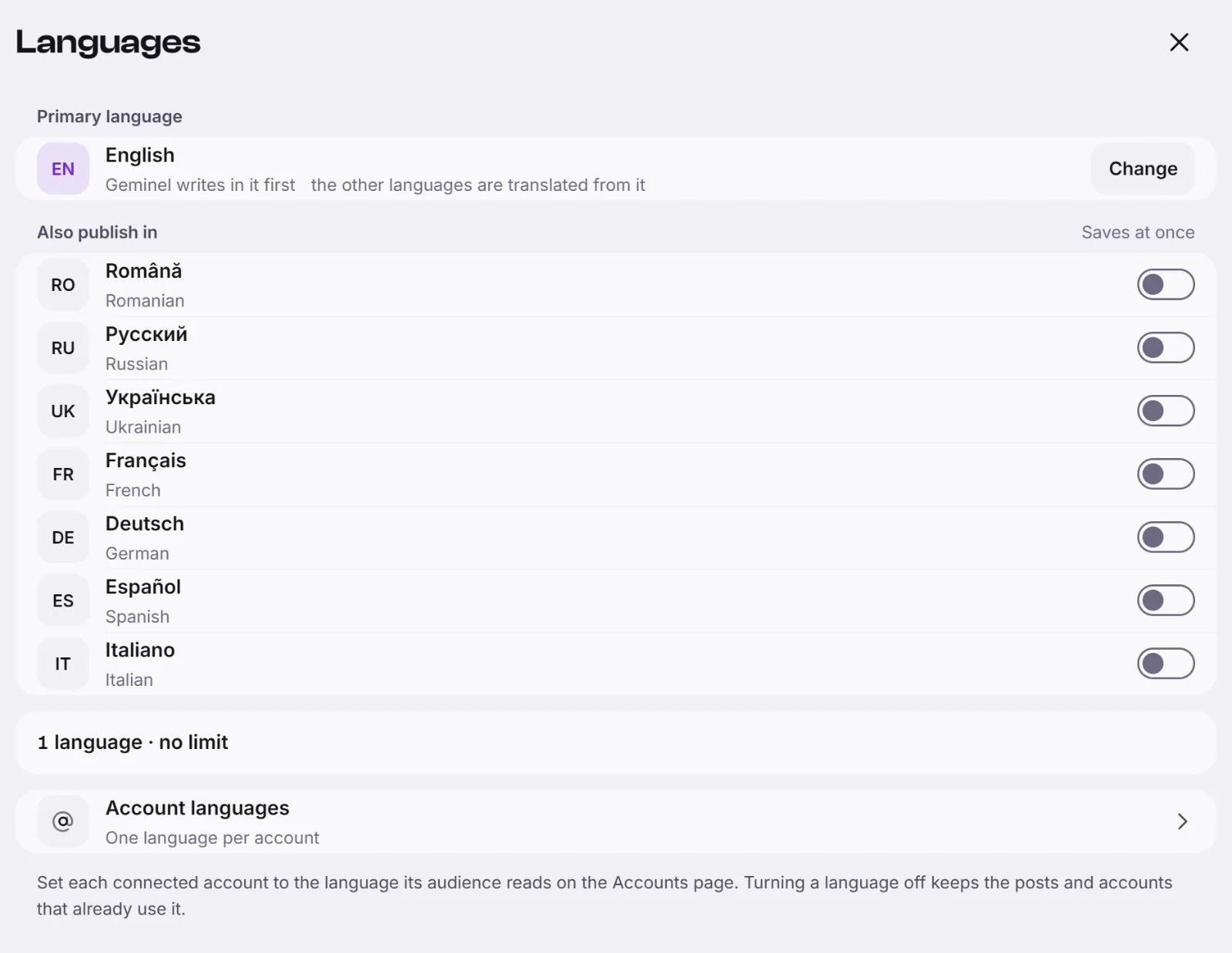
- Open the launcher, press Settings, then Languages.
- Under Primary language, press Change if you need another one, choose it and press Save. Geminel writes in the primary language first, and the other languages are translated from it.
- Under Also publish in, turn on a switch for each language you want. A switch saves at once, and you see Languages saved.
A line below the switches shows how many languages your plan allows. When it is full, the other switches stay locked until you turn one off. Plans are on Pricing.
Make a version of a post
- Open a post and press Languages.
- Find the language and press Create. Geminel translates the original, and the new version starts as a draft for you to review.
- Open the version to check and edit it. You approve and publish each version like any other post.
Each language is its own post. It goes only to the accounts set to that language. Translating can show a cost next to Create; see Credits.
Set the language of each account
- Open Accounts and open the account.
- Press the button on Content language and choose the language its audience reads.
Settings, Languages also has a row, Account languages, that takes you to Accounts. Steps for connecting accounts are in Connect an Instagram account. To check where a version goes, see Choose where a post goes.
Good to know
- Changing the languages is for the people who approve posts. If your role can only read, the screen says so.
- Turning a language off keeps the posts and accounts that already use it.
- If a language you need is not in the list, or you don't see Languages, ask us with Help and feedback.