Geminel tells you in the app when something needs you or has happened: a post waiting for approval, a post that went live, an account to reconnect. You read these notices in Notifications and choose which kinds you want to see.
Read your notifications
- Press the bell at the top of Home, or press Notifications in the launcher, under Engage. A number on the bell shows how many notices you have not read.
- The list shows All or Unread. Notices are grouped under Today and Earlier, and an unread one has a dot.
- Press a notice to mark it read. Some notices open another page, for example your credits in the console, in a new tab.
- Press Mark all read to clear them all at once.
Notices from Geminel itself appear in their own group, From Geminel.
If the list is empty it says Nothing here yet, or You're all caught up when you look at Unread.
Choose what you see
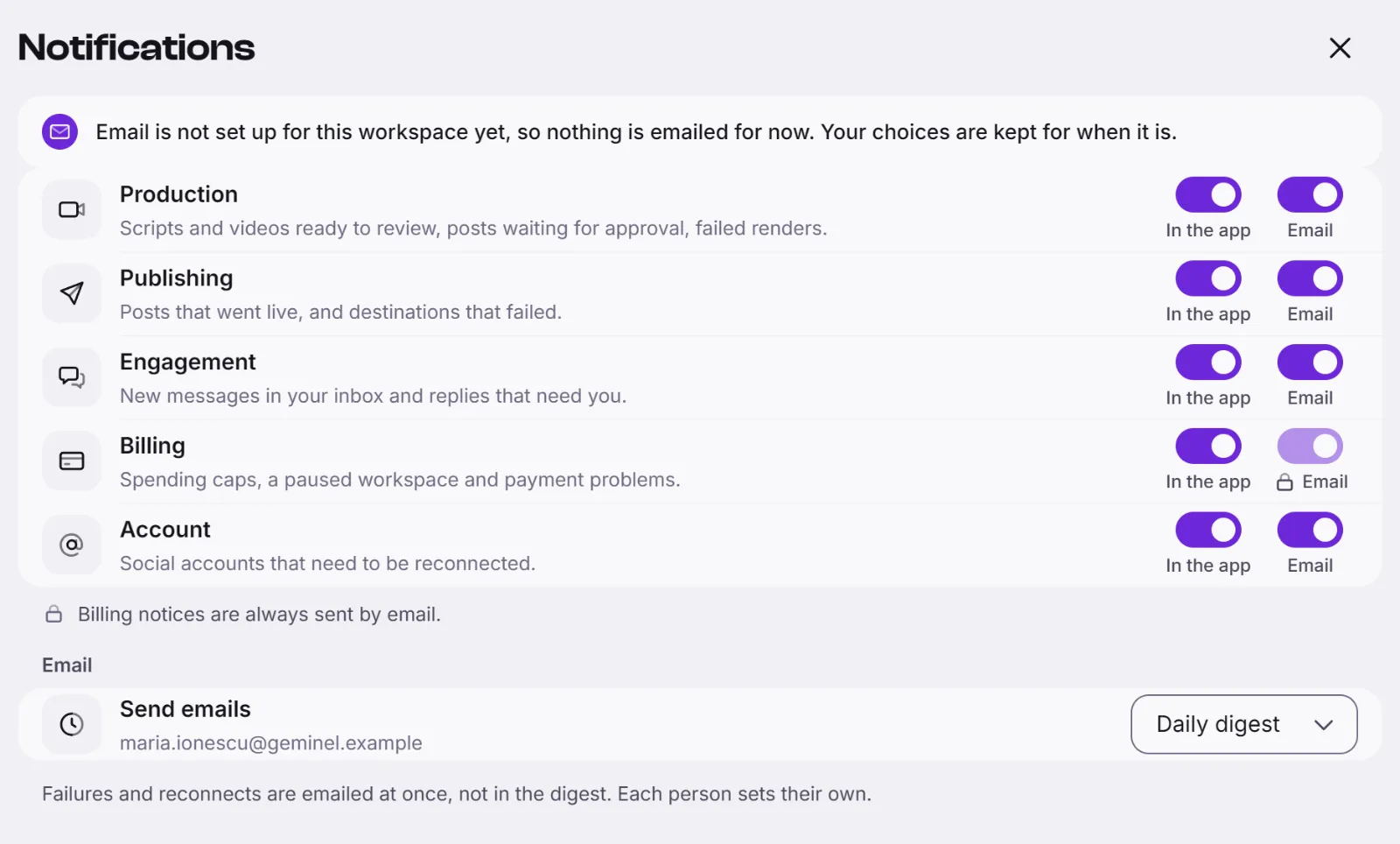
- In Notifications, press Notification settings. This opens Settings; press Notifications there.
- You see five kinds of notice, each with a short description: Production, Publishing, Engagement, Billing and Account.
- Each kind has an In the app switch. Switch it off and that kind no longer appears in your list.
These choices are yours alone. Other members of the workspace set their own.
Good to know
- Switching a kind off hides its notices. A notice that needs you, such as a post waiting for approval, will not appear in your list while its kind is off.
- Opening a notice does not do the task for you. For a reply that waits, go to Answer comments and messages or Automatic replies and welcome messages. For a post that waits, see Approve, schedule and publish.
- Some notices appear only for people who can act on them. If you expect a notice and don't see it, ask us with Help and feedback.