The calendar shows each post on the day and time it goes out, with the account it goes to and its state.
See the month
- Press Calendar in the dock.
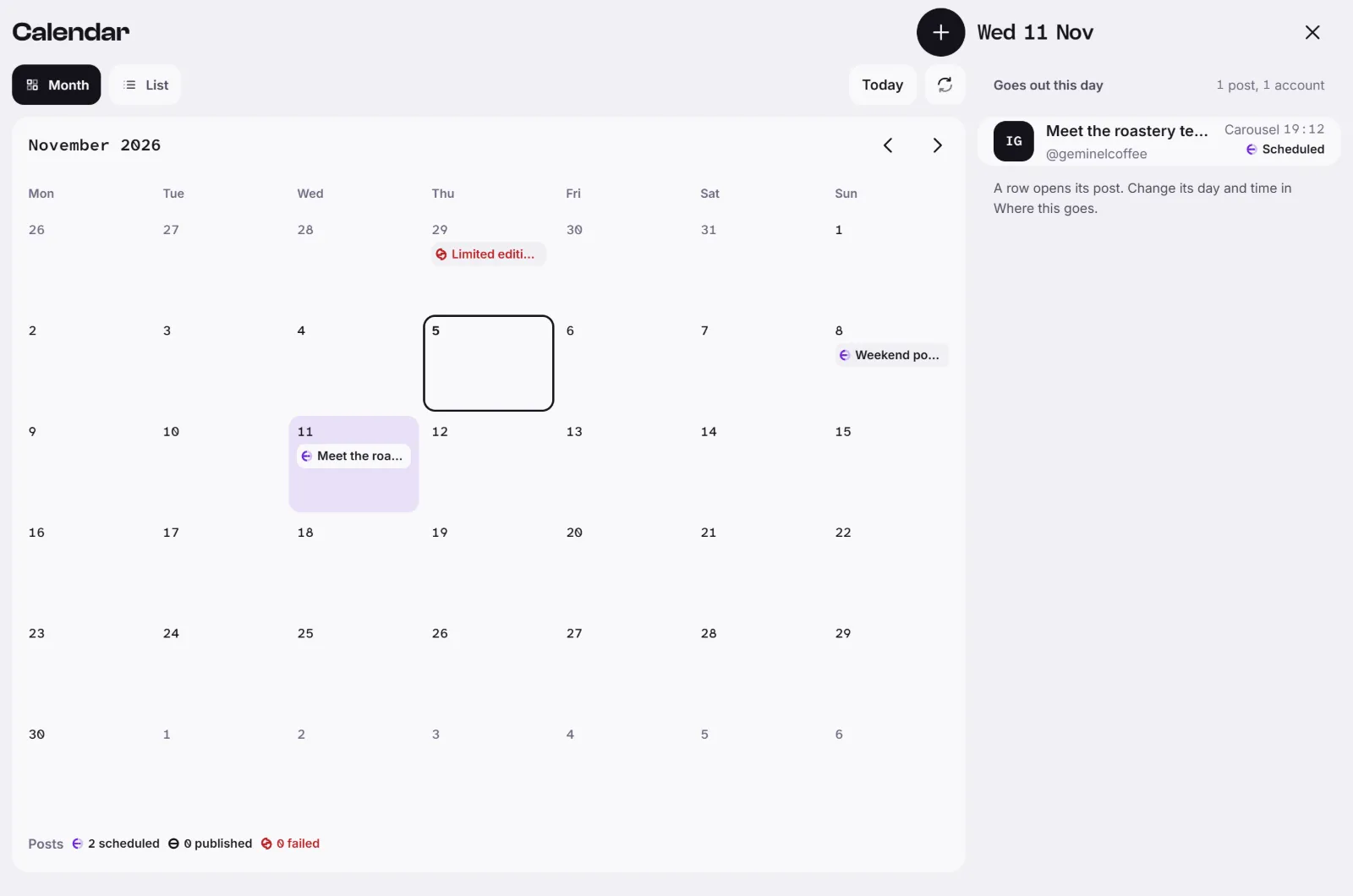
- Month is the first view. Each day shows the posts that go out on it. Move with Previous month and Next month, or press Today.
- Press a day. On a wide screen Goes out this day opens beside the month, and Close the day closes it. On a phone the day's posts show under the month.
- Each row shows the network, the post's title, the account, the place on it with the time, and a state: Pending, Scheduled, Publishing, Published or Failed.
Under the month, a count shows how many posts this month are scheduled, published and failed.
See the next days
Press List. Next 14 days lists the days with something going out, one table per day with the columns Account, Placement and Time and a state.
Open a post or add one
Press a row to open its post. To change its day or time, use Where this goes on the post: see Choose where a post goes.
To add a post, press New post at the top, or in an empty day. See Create a photo, carousel or text post.
Good to know
- Each row is one destination, so a post going to two accounts has two rows.
- The calendar lists destinations that have a day and time, or that already went out. A post with no time set is not listed, and a cancelled destination is left out.
- An idea you approve in the Planner becomes a draft whose destinations carry the idea's suggested time, so it appears here: see Get ideas and plan your week.
- Times show in your own time zone. Refresh the calendar loads it again.
- To approve, schedule or retry a post, see Approve, schedule and publish.
- If you don't see New post, your role or access can't create posts. If something else is missing, ask us with Help and feedback.