The owner of a workspace can invite the people they work with. Nobody joins until they accept, and you never share a password.
Send an invitation
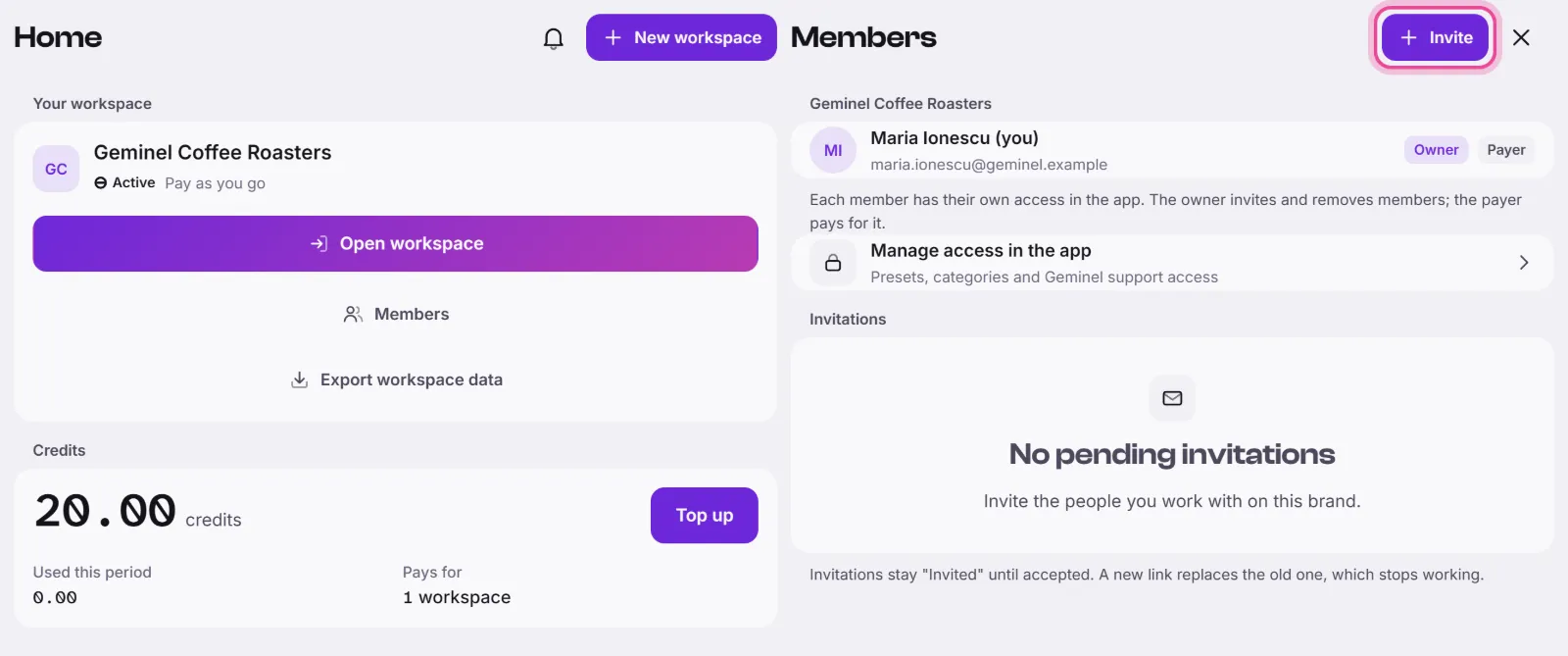
- In the console, open Home and press Members on the workspace. You can also press the people icon on a row of Your other workspaces.
- Press Invite. Only the owner sees it.
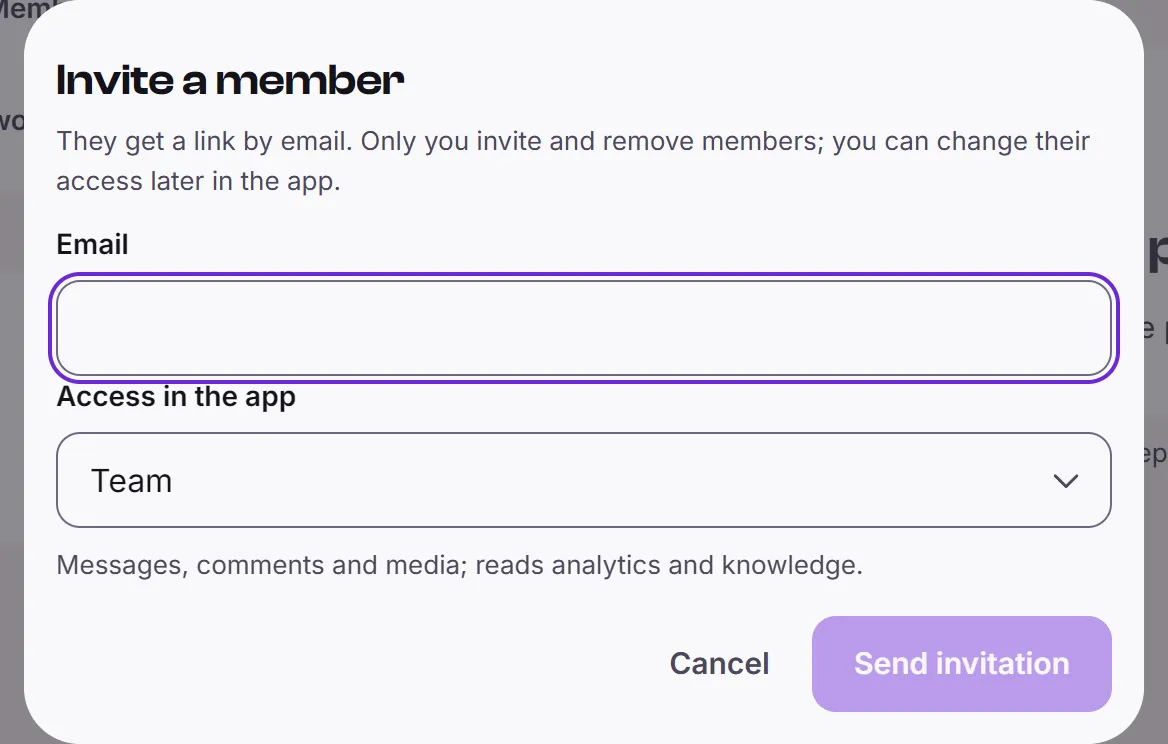
- In Invite a member, type the Email.
- Choose Access in the app: Full, Team, Creator, Viewer or Accountant. A line under the choice says what it allows. You can change it later.
- Press Send invitation.
If email is on, we send the link to the person. If not, the Invitation sent sheet shows an Invite link once. Press the copy button and send it yourself.
What the invited person does
They open the link. If the address has no account, they type Your name, a Password and Confirm password, then press Create account and join. If it already has one, they sign in as that address and press Accept the invitation. Then the workspace appears on their Home.
Manage invitations and members
- Invitations lists the ones not accepted yet, with the days left. Open the menu on a row for New link, which replaces the old link, or Cancel invitation.
- Open the menu on a member and choose Remove from workspace, then Remove. They lose access, and you can invite them again.
- A member who is neither the owner nor the payer can press Leave workspace on this screen.
Good to know
- Only the owner invites and removes members. Other members see the list but not Invite.
- Use a permanent email address. Disposable ones are refused.
- To see or change what each person can see in the app, press Manage access in the app. See Who can see sensitive data.
- The owner and the payer can't be removed. See Owner and payer.
- If a person says the link no longer works, send a New link.
- If you don't see Invite, check that you are the owner, or ask us.