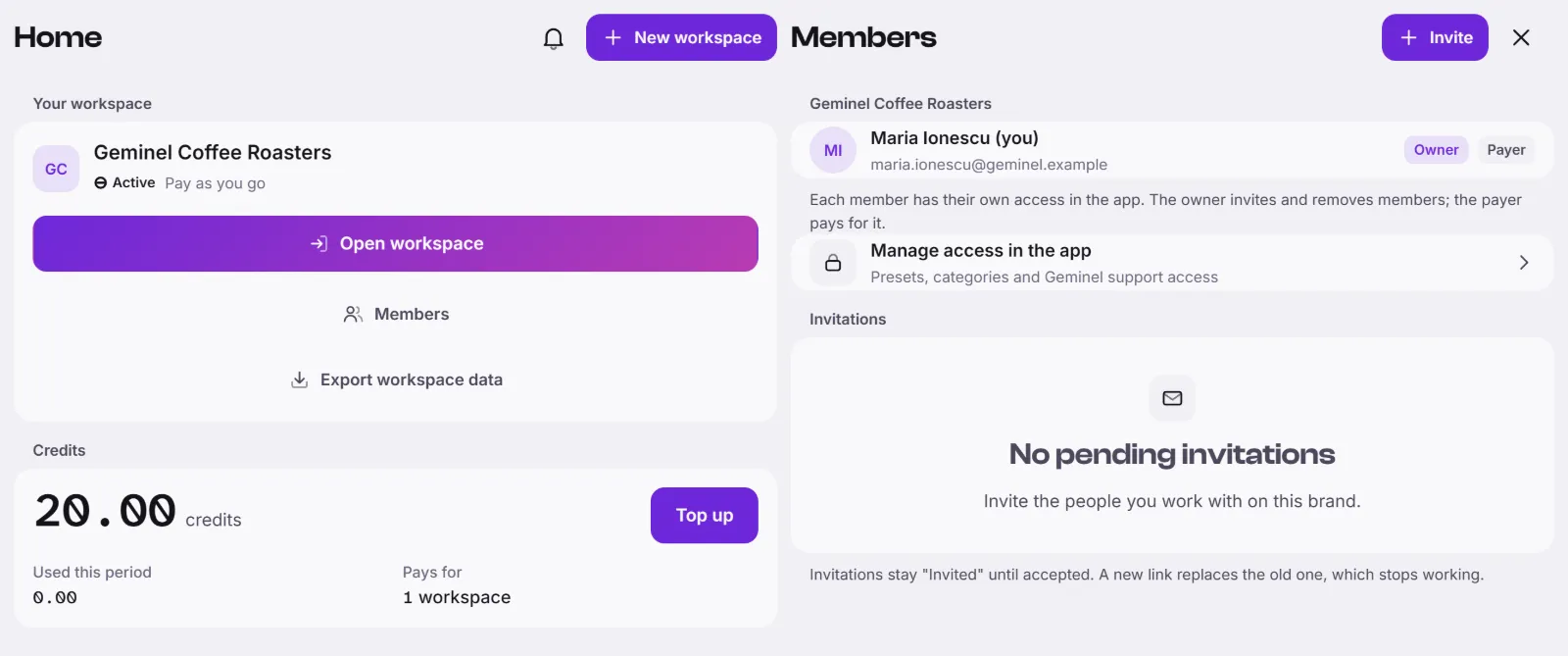
Every workspace has two roles. The owner invites and removes people and manages the workspace. The payer pays for it: the plan, the credits and the invoices. When you create a workspace you are both. They can be two different people.
See who is who
- In the console, press Billing and pick the workspace.
- Open Owner and payer. It is a row on a phone, and a pane beside Billing on a wide screen.
The same names show as Owner and Payer on the Members screen.
Ask for a role
- Open Owner and payer as above.
- Press Request to become the payer or Request ownership.
- The owner answers. If the owner is you and you want to pay, press Become the payer and approve the request below.
Your request waits under Sent by you, where you can press Cancel.
Answer a request, or hand a role over
- Answer. Requests and offers for you are under Waiting for your answer. Press Approve or Reject on a member's request. Press Accept or Decline on an offer.
- Hand over. As the owner, press Hand over a role. Choose the member under Hand a role over to, choose Payer or Owner, then press Offer the payer role or Offer ownership. They get the role only after they accept.
Good to know
- A role changes hands only when both sides agree. Nobody can give a role to someone else without their consent.
- To become the payer you add your Billing details, because invoices are billed to them. Press Add billing details on the same screen.
- Requests that nobody answers expire after 14 days.
- Only the payer can change the plan, top up and pay invoices. The owner can read the billing too. Other members see only Owner and payer. See Credits.
- The owner and the payer can't be removed from the workspace. To add people, see Invite people to a workspace.
- A workspace's owner can delete it. See Delete a workspace or your account.
- If the workspace shows Unassigned, ask us with Help and feedback.