You can belong to several workspaces. This article shows how to go from one to another, and how to reach the console from the app.
Switch in the app
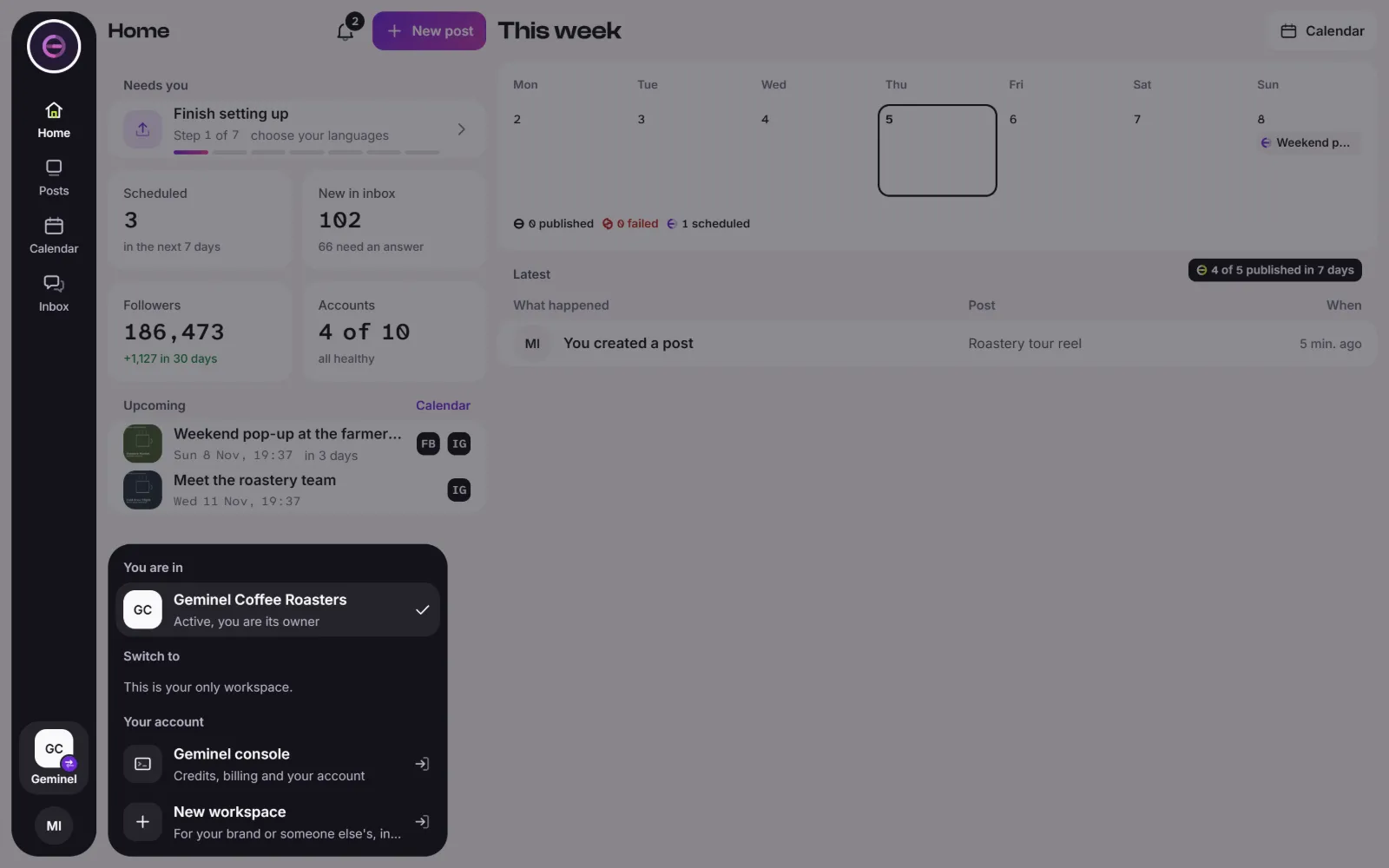
- Press the place tile. It shows your current workspace's initials and the first word of its name, with a swap mark. It sits at the foot of the side rail, and at the top of the screen on a phone.
- The list opens. You are in marks the current workspace. Under Switch to, press the one you want. If you have many, type in Find a workspace.
- The workspace opens in the same tab. The back button of your browser returns you.
The same list holds Geminel console, for credits, billing and your account, and New workspace.
Switch from the console
- Press the Console tile in the same place. The list opens with You are in and Open a workspace.
- Press a workspace to open its app.
You can also use Home. The workspace you opened last is under Last opened, with an Open workspace button. The others are under Your other workspaces, each with Open.
When a workspace will not open
A workspace that can't open is greyed out, and the line under its name says why. For example, it may be waiting for its first payment, or it may need Geminel to switch something on. If you can't tell what is wrong, ask us with Help and feedback.
Good to know
- If you have only one workspace, the app tells you This is your only workspace.
- If you open an app address that names no workspace, you see Choose a workspace and pick one there.
- Home puts the workspaces you own or pay for before the others.
- To make another one, see Create another workspace.
- If you don't see a workspace you expect, ask the owner to invite you, or ask us.