A video starts as a post. You choose a format, which decides the shape of the video, then you move through a short list of steps. This guide covers the first one.
Start a video post
- On Posts, press New post.
- Under Kind, pick Video.
- Under How do you want to start?, pick AI writes the script to be guided through every step, or I have a script to paste your own (see Review the script, or bring your own).
- Type a Title, a working name for your team, and press Create post. With I have a script the button reads Create and paste the script.
With AI writes the script, the post opens on Choose a format.
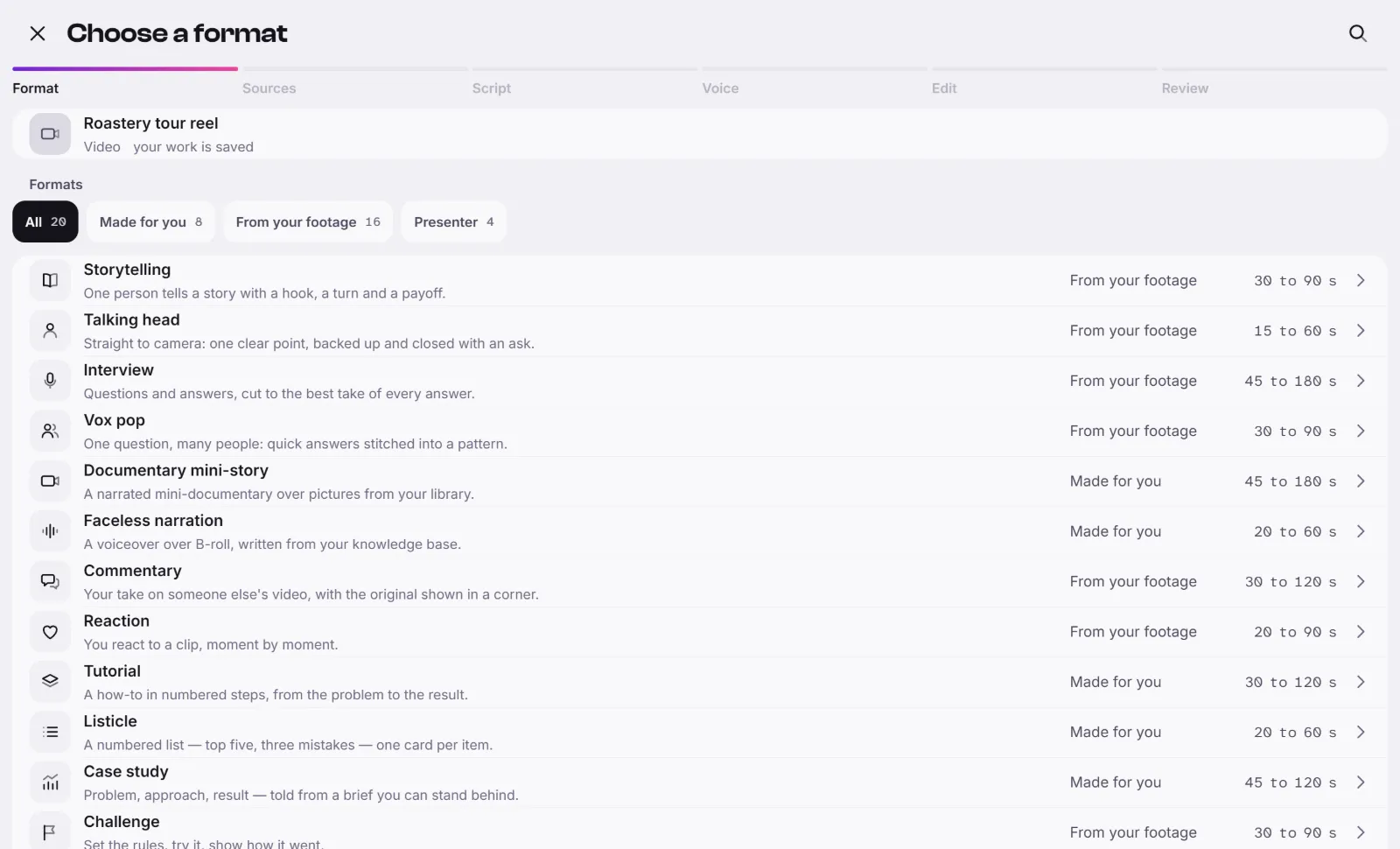
Choose a format
- Each row is a format, with a short description, how it is usually made and its length. Use the search icon, or the clips All, Made for you and From your footage, to narrow the list.
- Press a row to open it. You see its Beats, the parts the video is built from, and What it needs: the sources it asks for, marked Needed or Optional.
- Under How it is made, pick Made for you or From your footage.
- Made for you: a script, a voice-over and pictures from your library.
- From your footage: cut from footage you upload, with its own sound.
- Under Style, pick the look of the cuts and captions. Its description is shown below.
- Press the button at the foot, Continue with followed by the format's name. On a phone it reads Continue.
The steps
The bar at the foot of the screen shows Format, Sources, Script, Voice, Edit and Review. A video made from your footage has no Voice step, because it keeps its own sound.
- Format: this guide.
- Sources: Add your footage: what this video needs.
- Script: Review the script, or bring your own.
- Voice: Check the voice and choose voices.
- Edit and Review: the assembled video.
A later step opens once the one before it is done. A closed step tells you what to do first.
Good to know
- The format can change only while the post is a draft. After that the screen says This post is no longer a draft, so its format can't change.
- If a way to make the format is closed, the pane gives the reason under How it is made.
- Your work is saved as you go. Close the flow and come back from the post.
- The screens show what a step costs, in credits, before you approve it. To see credits and what they pay for, see Credits: paying as you go.
- Some workspaces also show Produce for me, where a team plans and writes the video for you. If you don't see it, ask us with Help and feedback.
- If you can't create a post or choose a format, the workspace owner may have limited who can edit. Ask the owner.