You log in to the console with your email and a password. This guide also covers your Profile, the language of your emails, and how to protect your account.
Log in
- Open the Geminel console login page.
- Type your Email and Password, then press Log in.
- If your account has two-step verification, enter the code it asks for: see Two-step verification.
Where you see Continue with Google or Continue with Facebook under the form, you can use them instead. If an account with that email already exists, the page asks you to log in once with its password to connect it.
If you forget your password, press Forgot your password?, type your email and press Email me a link. The link works for one hour. If you see Can't sign in? on the page, use it to write to us.
Your profile
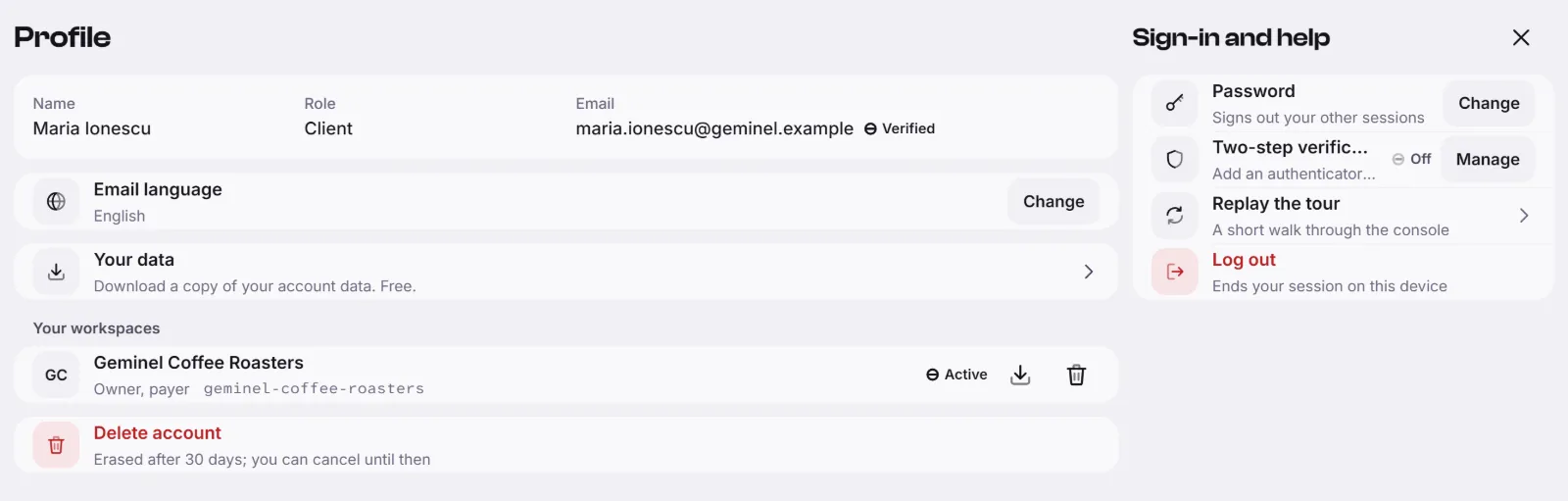
Open Profile in the dock. It shows your name, your role, and your email with Verified or Not verified. Under Your workspaces you see your part in each one. Under Sign-in and help:
- Password: press Change, then give your current password and a new one of at least twelve characters. Your other sessions are signed out.
- Log out ends your session on this device.
Choose the language of your emails
- On Profile, find Email language and press Change.
- Pick English or Română, then press Save.
Invitations, receipts, invoices and notices are written in this language. The screens themselves are in English.
Two-step verification
Two-step verification asks for a code from an authenticator app each time you log in, and for sensitive changes. You see the Two-step verification row on Profile when it is available for your account.
- Press Manage, then Add an authenticator.
- Scan the QR code with an authenticator app, or type the key into it.
- Enter the 6-digit code from the app and press Confirm.
From Manage you can Rename or Remove an authenticator. You need a confirmed email first: see Confirm your email.
Recovery codes
When you add your first authenticator, Geminel shows your recovery codes once. Press Copy or Download .txt, keep them somewhere safe, tick I saved them and press Done.
Each code works once. If you lose your phone, press Use a recovery code on the code step of the login. When few codes are left, open Manage and press Make new codes: the old ones stop working.
If you have lost both your phone and your codes, use Can't sign in? or Help and feedback and tell us.
Confirm your email
Until you confirm your email, a note at the top of the screen says so, and you cannot start creating, top up credits or invite people.
- Open the email from Geminel and press its link.
- If it did not arrive or the link expired, press Send the link again in the note.
Good to know
- If you don't see the Two-step verification row on your Profile, ask us with Help and feedback.