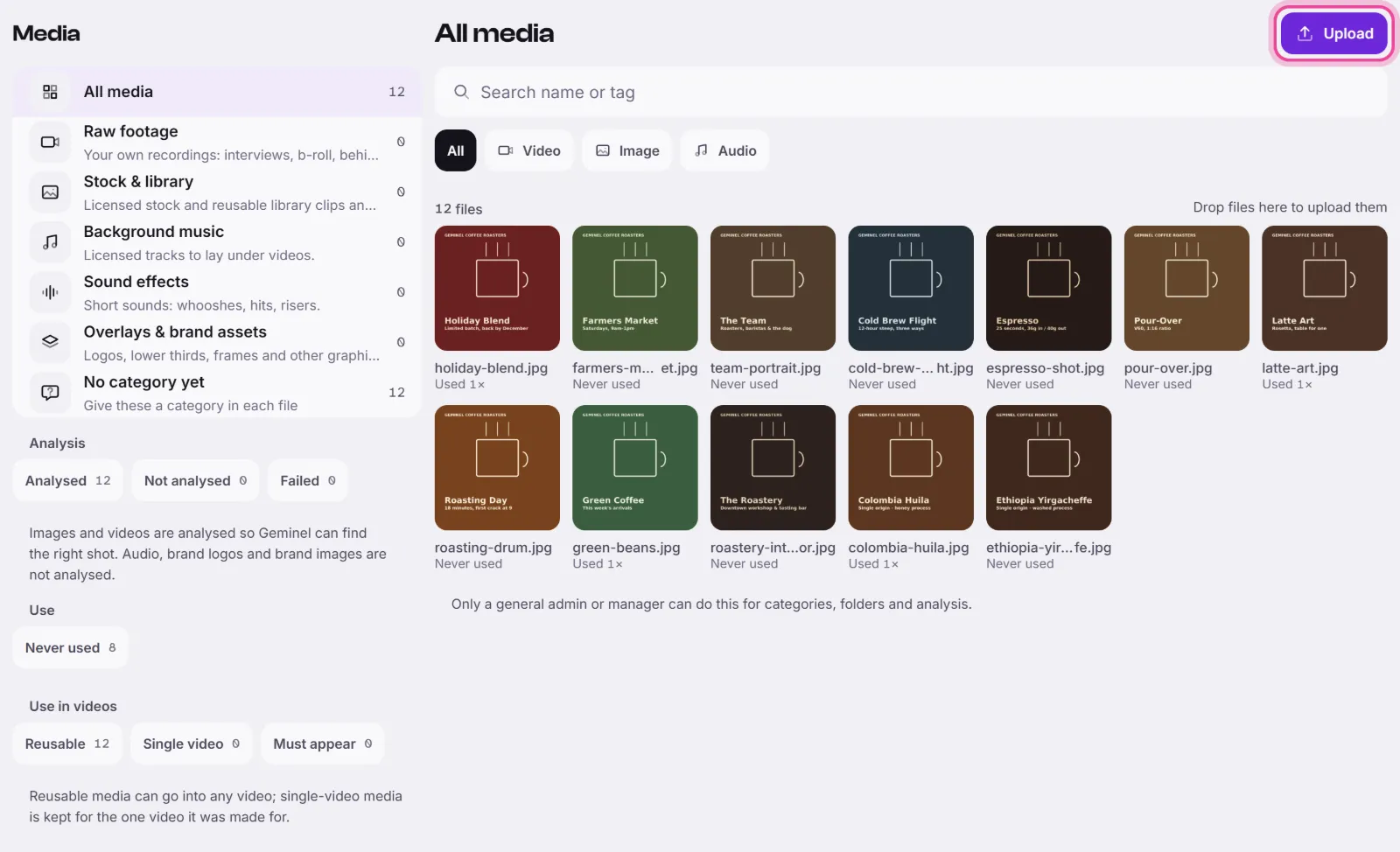
You add photos, videos and audio to the media library of your workspace. Geminel looks at the images and videos you add, so it can find the right shot later for your posts and videos.
Upload files
- Open the launcher and press Media.
- In the list on the left, choose where the files should go: a category or a folder. With All media selected, files are filed as uncategorised.
- Press Upload and choose one or more files. On a wide screen you can also drop files on the library, where it says Drop files here to upload them.
- Watch the upload rows. Each one shows its progress and where the file goes. When a file is done, a message says it is in the library and its tile appears.
- Press a tile to open the file. Right after an upload it can show Processing the upload, then Analysing, then Analysed.
If a file fails, its row shows the reason. Press the close button on the row to dismiss it, then try again.
Which files work
- Images: JPEG, PNG and WebP.
- Videos: MP4 and QuickTime (.mov). Geminel prepares each video so it plays in your browser.
- Audio: MP3, WAV, M4A, AAC and Ogg.
Every kind has a size limit. The tooltip of Upload and the message for a refused file state it.
Remove a file
Open the file, press Delete and confirm in Delete this media?. A file that a post uses cannot be deleted until you remove it from the post.
Good to know
- Images and videos are analysed. Audio and the logos of your brand kit are kept in the library but not analysed.
- If your plan's storage is full, Upload is off and a note tells you. See Storage: what counts and how it is billed.
- If an upload or a delete is refused, you may have view-only access to media in this workspace. Ask the workspace owner.
- You can also bring in pictures from Google Photos: see Import from Google Photos. If you don't see that option, ask us with Help and feedback.
- Categories, folders and tags are set by our team: see Find your media, and how folders are kept.